

Today we are releasing Build Your Own Worker to everyone.
When we launched AI Workers in May, we shipped eleven specialized agents scoped to the core jobs for customer centric teams: researching conversations, building coaching plans, analyzing team performance, surfacing product feedback. Each one owns a defined job, produces a specific deliverable, and runs on the customer intelligence data your QA and analytics teams already use.
Eleven workers cover the jobs most contact centers share. They do not cover every job a contact center runs. Every operations team has analysis and reporting work specific to its business, its terminology, and its rules. That work usually lives with the one analyst who built the spreadsheet, and it stays manual because no built-in tool was scoped to it.
Build Your Own Worker closes that gap. It is a no-code builder for creating a custom AI Worker scoped to any CX operations job. You define the task, the data the worker draws from, and the deliverable it produces. The worker then runs against 100% of conversations rather than a sampled subset, using your existing access controls.
What a custom worker can do
A custom worker tailors the AI Workers model to your contact center's terminology, business rules, and the context your team uses every day. You set clear instructions and reusable context once, so users get consistent results without re-explaining the same details on every run.
Custom workers come in two types, and the type determines both the analysis the worker runs and who can use it.
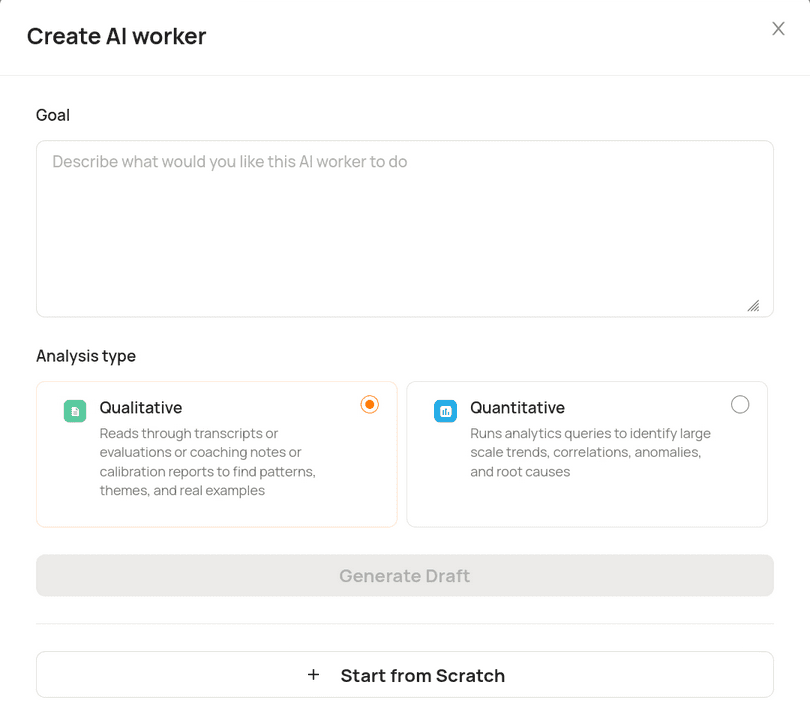
Qualitative workers analyze text: transcripts, coaching notes, and written evaluations. A qualitative worker is the right choice for broad, repeatable insights across time, such as summarizing the top three objections in sales calls. Anyone with access to AI Workers can run one, including managers and QA leads.
Quantitative workers run metrics analysis across larger datasets, such as the correlation between handle time and sentiment score. Quantitative workers are restricted to Admins for security and data governance.
How it works
Building a worker takes five steps inside the no-code builder. Admins and Super Admins build and publish workers; the people who run them depend on the worker type.
1. Set the goal and analysis type
Start by entering the worker's goal or use case, then choose an analysis type. Qualitative covers text-based analysis of transcripts, notes, and evaluations. Quantitative covers metrics and trend analysis across large datasets. If you are building for broad, repeatable insights across time, start with qualitative unless you specifically need correlation or trend analysis.
2. Configure identity and instructions
Identity is what the worker is. Give it a name and a description so your team understands the questions it is designed to answer. A worker named "Refund Analyst" with a clear description tells a user exactly when to reach for it.
Instructions are the biggest driver of output quality. Specify the persona the worker should take, the format it should respond in, and the scope it should hold to. If you are stuck, write a simple instruction in plain English and click Write with AI, and the builder will rewrite it to be more precise.
3. Choose data sources
Select which Level AI data pools the worker can access: Conversations, QA Reviews, Coaching Sessions, AutoQA Scores, and more. You can draw from more than one area of the platform in a single analysis, so a worker can review related signals together and act on them in one pass. Select only the sources that the goal requires to keep results focused.
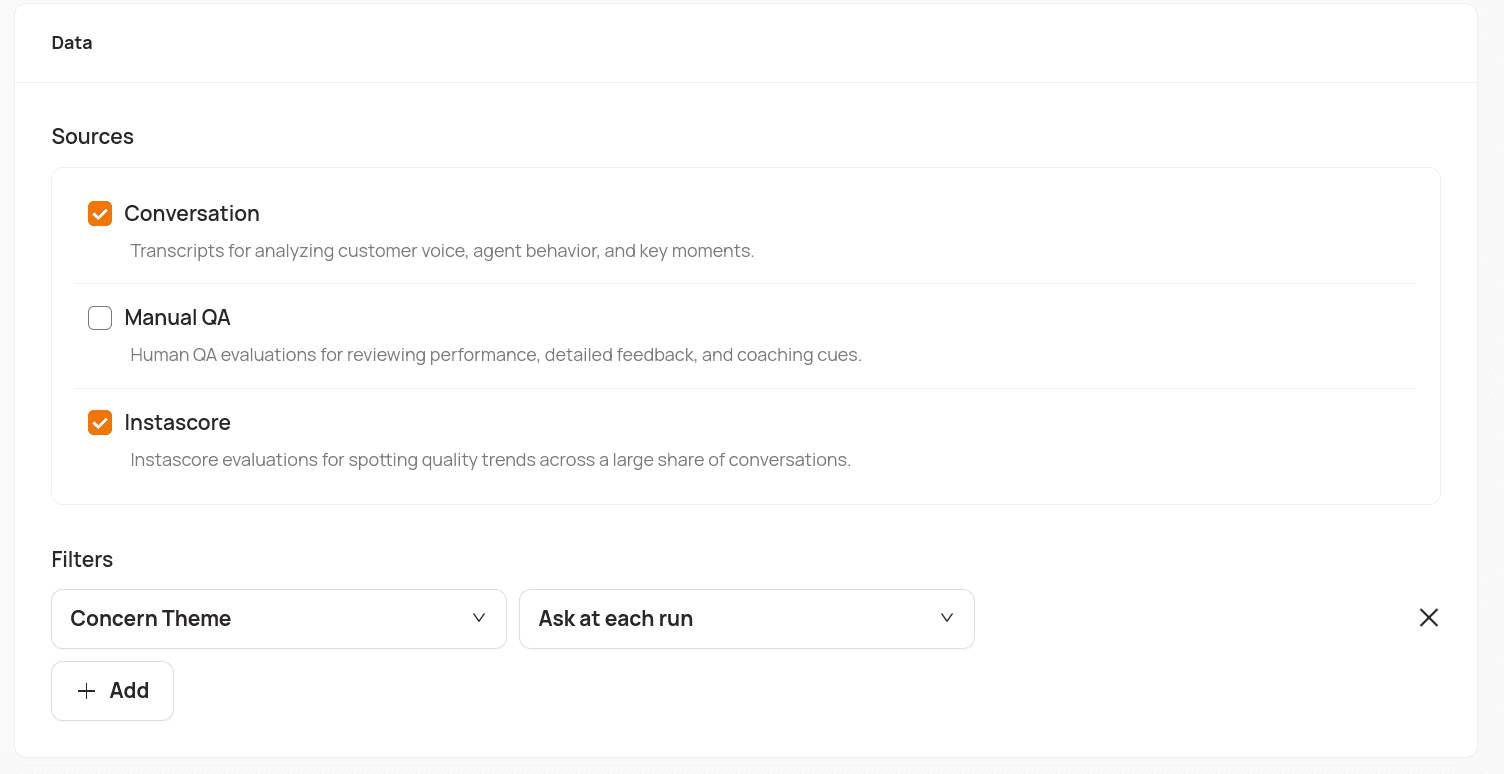
4. Set filters
Filters control the data scope that the worker analyzes, such as team or time range. Each filter is either fixed or dynamic. A fixed filter holds a value you set, such as Team equals Support, and users cannot change it. A dynamic filter asks the user to choose the value before each run. Setting a date range to ask at each run keeps users from analyzing outdated data by accident.
5. Test and publish
Use the test panel to run a sample query, such as analyzing the last five calls, and review the output. Refine the instructions until the response is specific and structured. When the worker is ready, publish it as Only Me to keep testing privately, or as Everyone to add it to the Custom Workers gallery for your organization.
Governance is built in
A custom worker follows the same access controls as every built-in worker. For qualitative workers, the worker respects each user's Level AI permissions and analyzes only the conversations and agents that the user is allowed to see. A manager who runs a worker sees results drawn from their own permitted scope, not the full org.
The worker also holds to its data. When a query and its filters return zero results, the worker reports that no data was found. It does not guess an answer when there is none.
Editing a live worker moves it into a draft state, where it is hidden from other users until you publish again. That keeps a half-edited worker from reaching your team mid-change.
The same foundation, opened up
Custom workers run on the architecture behind every AI Worker. Each one reads from a unified intelligence foundation that links conversations, QA scoring history, CRM records, team hierarchy, and AI-enriched signals into one customer 360 context graph. There is no parallel data pipeline and no reconciliation step. A worker you build this afternoon draws from the same scored, tagged, and structured data your QA and analytics programs already rely on.
Since the AI Workers launch in May, teams have run more than 25,000 worker runs across the platform. Organizations including Smartsheet, VistaPrint, and Ollie Pets run workers daily, completing work that previously took hours in seconds and across every conversation rather than a sample. Build Your Own Worker extends that model to the jobs only your team knows it needs.
Get started
Build Your Own Worker is available today. Admins and Super Admins can open AI Workers and click Create Worker to build the first one.
A note on what is coming: uploading your own policy or knowledge documents to a custom worker is not yet supported, and we are building it for an upcoming release.